Parts' AutoSnap
AutoSnap is a mechanism that allows you to magnetically snap the parts to each other facilitating their insertion and/or movement.
Moreover, it ensures positioning in a way similar to the OSNAP mechanism of AutoCAD and BricsCAD.
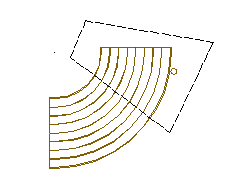
For the mechanism to work, it is necessary to set up, in the Parts you intend to use, a connector (defined with a block) at the point where you want the Snap to be.
Every time the user moves a part, if Snap connectors are found in it, a magnetic snap will engage with the nearest connector detected in the drawing.
When the distance between the part being positioned and the nearest detected connector drops below a minimum threshold (definable by the user), the part will be snapped so that the 2 connectors coincide in angle and position.
The AutoSnap mechanism can be disabled using the dedicated button on the status bar of the CAD.
To make managing connectors easier in 2D and 3D environments, we have introduced the management of the connector visibility state.

E’It is possible to display the connectors in native mode (block), in design mode (tripod -1) or in usage mode (sphere -2).
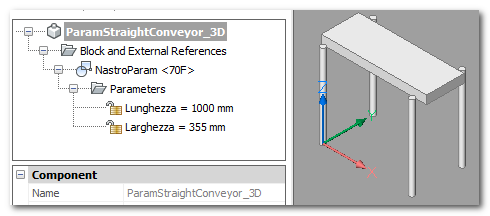
A button in the status bar allows you to change the display mode. Some options are available.
Color by layer
When the display is in usage mode (sphere), the color of the spheres is assigned by the part's layer (1-red, 2-yellow, 3-green,…)
Show by layer
When this option is active, only the connectors of the active part or of a part descending from the active part are displayed.