Contextual Menu – Available Functions
In this chapter we analyze the functions available in the Navigator.
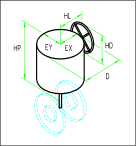
 Activate Top
See command Top_Mod_Prt_Top.
 Activate parent
See command Top_Mod_Prt_Pdr.
Activate ->
Shows the structure of the parts tree starting from the selected part up to the TOP part.
 New
New
Creates a new part, child of the selected one. See command Top_Init_Prt.
 Delete
Deletes the selected part. See command Top_Canc_Prt.
 Attributes
Edits the attributes of the selected part and of its children according to the open state of the branch in the parts tree and to the application settings. See command Top_Attr.
 Classify
Lets you assign a classification to the selected parts. Different sets of attributes can be assigned to different classifications. See command Top_Classify_Prt
 Cut
Cut
Moves the selected part within the parts tree. Once the part has been cut, to insert it just select the part intended to be its parent, right-click and select "Paste".
 Copy
Copy
Copies the selected part within the parts tree. Once the part has been cut, to insert it just select the part intended to be its parent, right-click and select "Paste".
 Copy Base Pt.
Copies the selected part within the parts tree, with the peculiarity of also requesting a point from the graphic area to be used as a reference for pasting.
 Paste
Paste
Pastes a selection of copied or cut parts as a child of the part currently pointed at.
 Label
Label
Lets you display the label settings dialog.
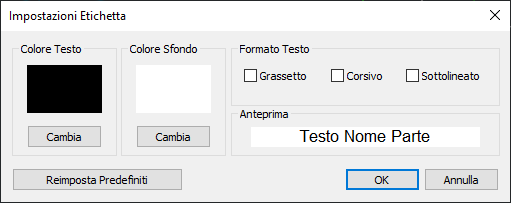
The dialog lets you define all the main label parameters: color, bold, italic and underline. The "Reset Defaults" command lets you reset the parameters.
Display
 Turn On
Turns on the selected parts.
 Turn Off
Turns off the selected parts. See commandTop_PrtFreeze.
 Isolate
Turns off all parts except the selected ones. See commandTop_Isola_Prt.
 Turn On All
See commandTop_Vis_Tutte.
 Invert visibility
See commandTop_Vis_Inv.
 Turn on annotations
See commandTop_ShowAnnotation.
 Turn off annotations
See commandTop_HideAnnotation.
 Save parts status
Allows the user to save the current visibility state of parts (on/off) in memory. See command Top_Save_PartState.
 Load parts status
Restores a previously saved part visibility state. See command Top_Restore_PartState.
 Delete parts status
Deletes a part visibility state from the list. See command Top_Delete_PartState.
Ordina
 Move top
Moves the selected part to the first position among parts at the same hierarchical level.
 Move Before
Moves the selected part one position backward within the list of parts at the same hierarchical level.
 Move After
Moves the selected part one position forward within the list of parts at the same hierarchical level.
 Move last
Moves the selected part to the last position among parts at the same hierarchical level.
Parts
 Activate Previous
Reactivates the part that was active immediately before the current part.
 Rename
Renames the selected part.
 Explode
Explodes the selected part. See command.
 Aggregate entities
Aggregates geometries into the selected part. See command Top_Mv_Elem.

Converts the selected part into a block. See command Top_Prt2Blk.
 Convert to Xref
Converts the selected part into an Xref. See command Top_Prt2Xref.
 Zoom
Zoom
Performs a Zoom Extents on the selected part.
 Select
Selects the entities belonging to a part.
 Set part color
Sets the Spotlight color for the entire part. See command Top_Color_Prt.
 Reset part color
Reassigns the default Spotlight color to the selected parts. See command Top_ResetColor_Prt.
 Save
Save
Exports the selected part together with its child parts. See command Top_Salva_Prt.
 Save in user library
Saves the selected part into the User Libraries. See command Topl_SavePrtUserLib.
 Load
Load
Inserts the part structure of an external DWG file as a child of the selected part. See command Top_Carica_Prt.
 Load Extern
Inserts the part structure of an external DWG file as a child of the selected part. See command Top_Carica_Ext_Prt.
 Find
Find
Allows searching for a part within the part tree. When the command is launched, the dialog shown in the figure is displayed.
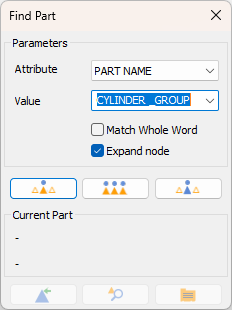
Attribute : Defines the attribute in which to search for the keyword.
Value : The keyword to search for.
Whole Field : Searches for the complete word or part of it.
Expand Node : Determines whether matching nodes should be expanded.
The three central buttons, in order, allow you to:
- Select the next part matching the search criteria.
- Select all parts matching the search criteria.
- Activate the next part matching the search criteria.
The three buttons at the bottom, in order, allow you to:
- Activate the selected part and exit.
- Zoom to the selected parts.
- Edit the attributes of the selected parts: opens the application's attribute editor. Any modifications will be applied to all selected parts.
 Set base point
Defines the base point (origin) of the part. See command Top_Cambia_Rif
Selects all parts in the part tree.
Inverts the current selection in the part tree.
Features
 Editable yes
 Editable no
Sets the part as editable or non-editable. For more information, see the chapter Bloccaggio ed editabilità delle parti
 Commercial yes
 Commercial no
Enables or disables the Commercial attribute of the part. If the commercial part is coded, the user is prompted whether to change the status of all parts with the same code.
 Include in BOM
Includes or excludes the selected part from the Bill of Materials. When excluded, a "." is added to the part name; when included, the "." is removed.
 Exclude from BOM
Includes or excludes the selected part from the Bill of Materials. When excluded, a "." is added to the part name; when included, the "." is removed.
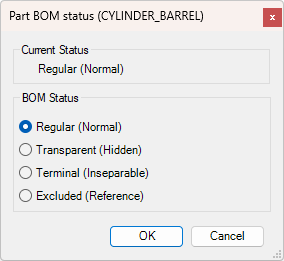
 Set BOM Status
 Preserve part from Erase
Prevents the selected parts from being removed by the Delete Empty Parts command, even if they contain no geometry.
 Allow erase part
Removes from the selected parts the attribute that prevents them from being deleted by the Delete Empty Parts.
Expand branches
 First
First
Expands the part tree branches up to the first level.
 Second
Expands the part tree branches up to the second level.
 Free
Free
Expands the part tree branches up to a level chosen by the user through a dedicated dialog.
 All
All
Expands all branches of the part tree.
 Expand
Expands only the branch of the selected part.
 Collapse
Collapses the branch of the selected part.