Console Designer

The Console Designer is a stand-alone application that allows for the simplified creation of the Console for TOP Layout through the use of a new and efficient interface.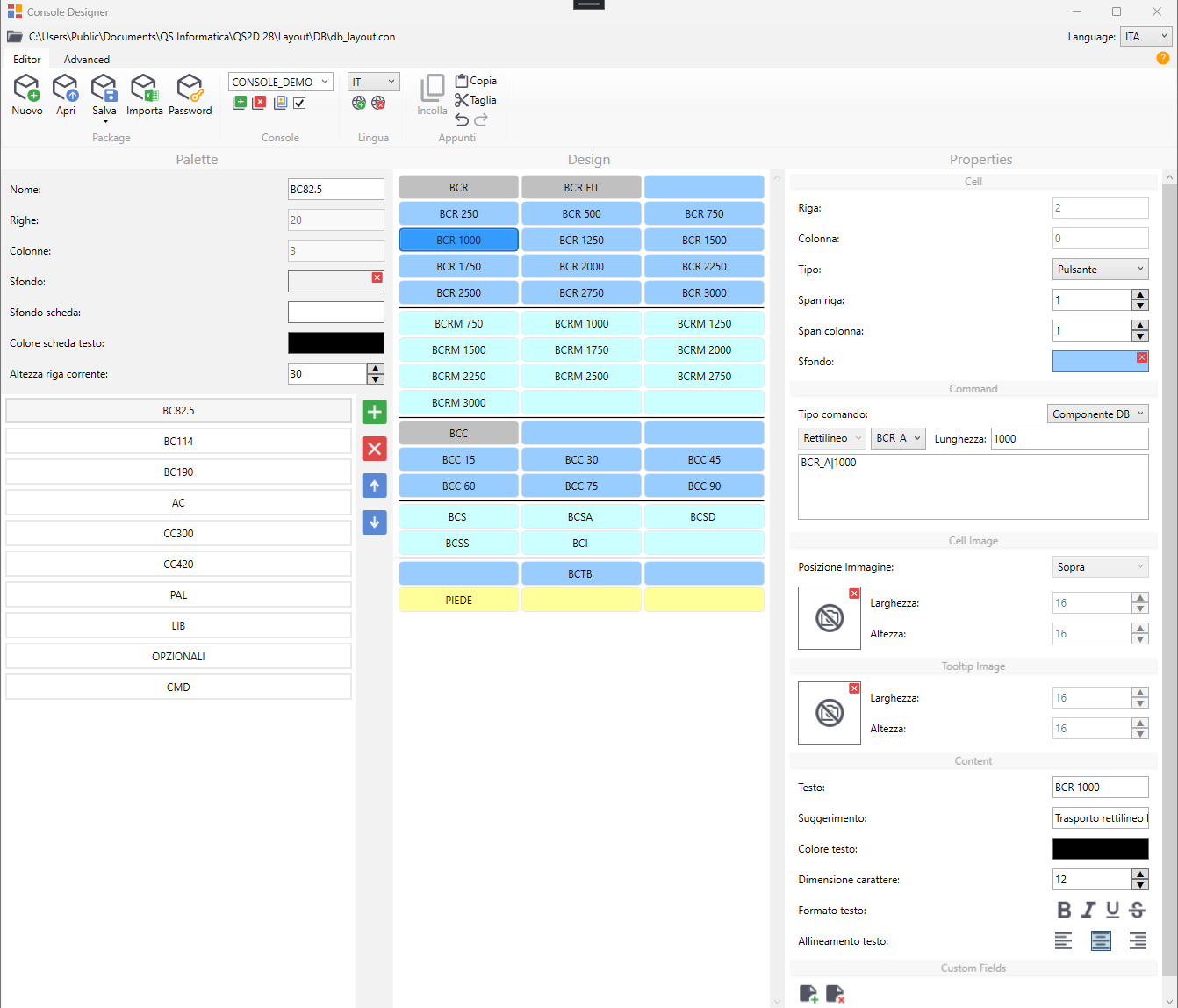
The Designer is divided into 3 vertical sections:
- Palette
The Palettes section allows you to manage the different palettes within a console, highlights the active one, and allows you to customize its Name, Palette Background Color, Palette Box Background Color, and Palette Box Text Color.
Using the side arrows, you can change the order of the Palettes.
Using the + and x keys, you can add or remove a Palette. - Design
The Design section allows you to define the console. You can use multiple selections, either by holding down CTRL and clicking each desired cell, or by selecting a series of cells at once by holding down SHIFT and clicking the target cell.
There's a context menu here that allows for multiple options for copying, pasting, moving, etc. - Tools
The Tools section allows you to edit the controls of the current Palette.
This section is divided into several areas based on their usefulness:
The "Cell" section contains all the basic cell properties, such as position, type, span, and color.
The "Command" section, which appears only if the cell is a "Button" cell, allows you to determine the type of command the button will execute.
The "Cell Image" and "Tooltip" section allows you to insert an image directly into the cell or its tooltip, changing its size.
The "Content" section allows you to set what will be written in the cell or its tooltip, changing its color, size, position, or graphical characteristics.
The "Custom Field" section allows you to populate customizable fields with IDs corresponding to right-click actions in each cell.