Top_UserLib

Load User’s Libraries
- What
- Displays a dialogue-box to select one of the saved parts and load them on the drawing.
- Why
- Displays a dialogue-box to select one of the saved parts and load them on the drawing.
- How
- Enter the command to display a dialogue-box to load functionally the libraries.
On the left side is displayed the structure of the folder with the main user’s library selected with the variable RootPathUserLib, in the application’s customization file, as previously described.
If the variable has not been initialized, the reading path is located in the current environment. Select the folders on the left to display on the right the parts contained in each directory. Select one part to update the part’s preview and its complete path, as described in the image below.
If the preview is too small to provide a clear view of the selected part, you can click the "Expand Preview" button. This will open an additional window where the selected part can be viewed as if you were working directly in the CAD environment.
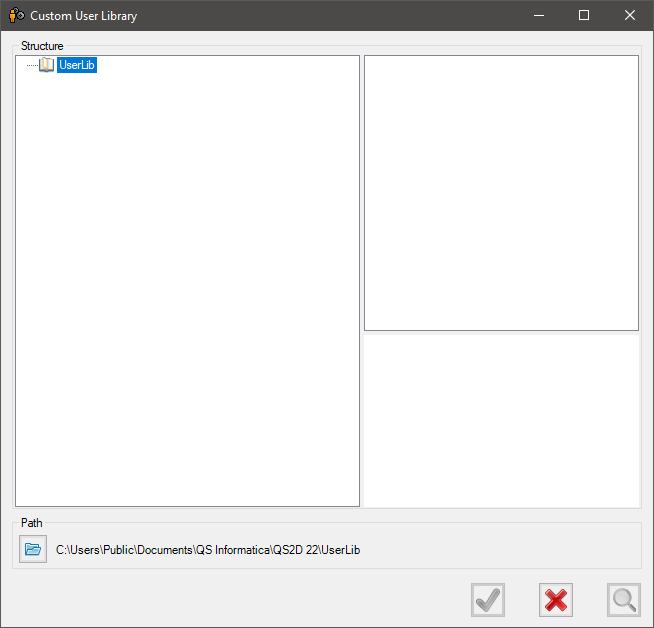
Once selected the part to load, enter the button Carica (Load) to place in the drawing the part and select the layering point and the rotation angle.
Each time the command has been entered, the folders’ structure set by the user is replayed. To insert new parts in the library, use the command Topl_SavePrtUserLib, which saves the current part and proposes as default the UserLib’s main directory.
|
Note |
The command triggers the AutoSnap's mechanism, which means that if the loaded part has a Snap, it will magnetize to another part if it also has a Snap. |
![[Nota]](lib/imgnote76.png)
There is also another dialog of user libraries (advanced) that can be activated by setting the corresponding variable in the options.
Top > Standard > Library > Usa Dialogo Avanzato Librerie Utente
With the advanced dialog you can:
- Make an advanced search, by name or attributes
- Having a preview multiple designs.
- Change the scale of insert.
N.B: You change the scale of the geometry and not the Part.

Selecting this button in the upper right, the dialogue will reopen automatically after you insert the part in the drawing.

Selecting this button in the upper right, you will be able to manage the attributes of the individual designs.