Qs Informatica Options Dialog-box
Qs Mechanical Suite provides users with dozens of settings to adapt its behavior as closely as possible to their own working needs.
In the AutoCAD environment, a dedicated tab is added to the CAD options window.
In BricsCAD, instead, there is a dedicated command: Top_PersVar which opens a dedicated dialog box.

Through this window you can set all the variables of the applications and of any installed customizations. When an option row is selected, a short explanation of its effects is shown at the bottom of the dialog.
By setting the options of the applications with this system, you obtain a change that takes effect on the application in real time.
On the left side of the dialog we can find the tree of applications where their settings are stored.
Each application has child entries, called sections, which serve to logically divide the variables according to their main family.
Below the list of parameters, the path of the user file is shown, which is the path of the local options configuration, and the path of the standard file, which is the path of the file containing the default options.
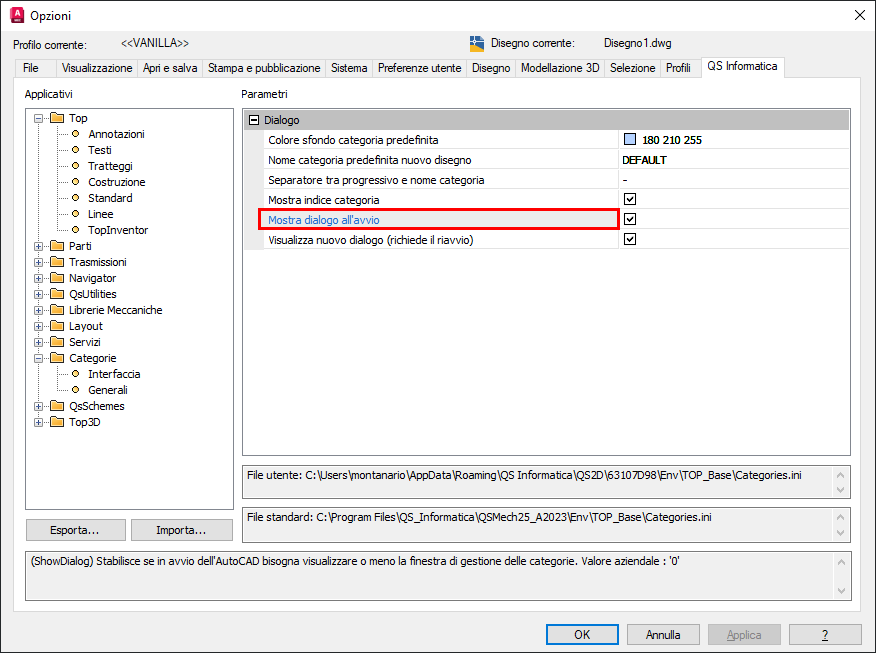
It is possible to display, highlighted in blue, the options that differ from the company standard: the value set in the standard is shown in the lower text box.
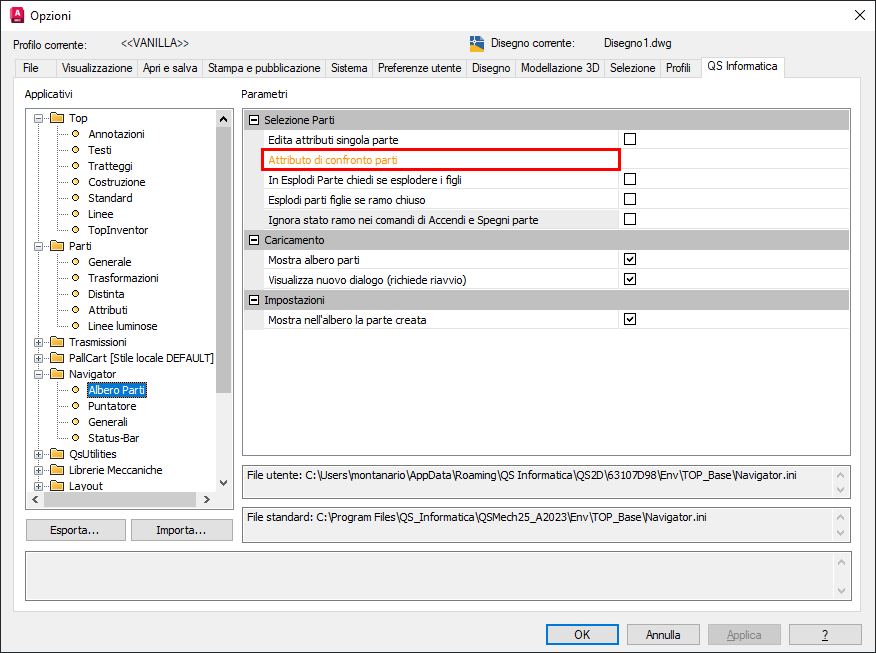
It is also possible to display,highlighted in orange, the options that are missing in the company configuration.
Color summary
Black: the local value and the value in the standard file are the same.
Red: the value is locked and cannot be changed from the company standard.
Blue: the value set in the local file differs from the company standard. It can be modified.
Orange: the variable was not found in the company standard file (obsolete company configuration file).
Exporting\importing configurations.
You can also export and import the application configurations with the two buttons found on the dialog in the area below the application tree. This makes it possible to quickly clone the configurations across multiple workstations.
TheExport... button asks to save a configuration file qssettings.qss (formatted in XML) containing all the properties set at that moment.
TheImport… button requires the selection of a file with the qss extension.
Once the various settings are complete, you can press theOk orApply buttons to confirm the changes, or Cancel to discard them.
Aligning options Local - Network
In the options dialog there are commands to align the options between the user configuration and the company configuration.
The commands are divided into:
- “Write missing variables to network”: allows you to write to the company file all the options that are missing (shown in orange).
- “Realign variables modified from the network environment”: allows you to reset, according to the values set in the network environment, all the options that differ (shown in blue).
- “Write single variable to network”: allows you to write to the company file the value of the single selected variable that is missing.
- “Realign single variable from network”: allows you to reset the selected option according to the value set in the network environment.
The commands in the pop-up menu shown by right-clicking are divided: if you right-click on the property list you get all the single-variable features, while if you click on the tree view on the left you get access to the bulk features.